Thursday, October 24, 2019

Huawei CEO Spotted with an iPad at Airport Security


Huawei CEO, Ren Zhengfai seems to be an Apple fan. The CEO was spotted carrying and handing over an iPad at airport security. As expected the photos are doing rounds on social media.

The photos were taken whilst Huawei CEO Ren Zhengfei was submitting an iPad for examination at an airport. Huawei is one of the biggest rivals of Apple. That being said, the CEO has hinted at his fondness for Apple devices. He also admitted to Chinese media that his children prefer Apple products over Huawei. Moreover, Ren says that he buys iPhones for his family members when he is abroad. Thats not all, he has also praised Apple as “the world’s leading company” and added, “Apple is my teacher.”

Earlier this year, Huawei had punished its employees for tweeting from an iPhone. Both the employees not only took a cut on their salary but were also demoted. We are not sure if Ren Zhengfai will face a similar fate. On the other hand, it might be a strategic move to connect with people by expressing their likingness for Apple products.

Lately, the sentiment of Chinese consumers seems to be different from that of Ren. Chinese issued calls to boycott Apple products in China last year. The boycott was in response to US blacklisting Huawei from purchasing American technology.
Our Take

Brand ambassadors, employees and company executives have been caught using devices from rival companies. That being said, company executives often use products from competitors. For instance, Steve Jobs was once spotted using IBM ThinkPad while working on a keynote presentation.

Do you think CEOs and company executives should refrain from using competitors’ products in public? Let us know what you think in the comments below.Also Read:Download & Save YouTube Videos to iPhone/iPad

Also Read:Hide Your Text Messages


[via SCMP]

Get Up To Speed With iOS 13 Development With This Bundle [Deals Hub]


Apple’s technology is always changing. If you’re trying to stay up-to-date with all of the tech giant’s newest developments, we have the perfect solution. The Complete iOS 13 & SwiftUI Developer Bundle comes packed with four helpful courses to ensure you’re well versed on SwiftUI, Swift5 and iOS 13. And it’s available now in the iPhone Hacks Deals Hub for just $19.

So what courses are involved in this comprehensive bundle? Here’s what included:

The Complete iOS 13 Developer Course & SwiftUI

This course will have you building iOS 13 Apps with ease thanks to hands-on projects and plenty of bonus content. Over more than 28 hours of content, you’ll master iOS 13 development with Swift5, conquer Swift5 programming skills and be building your own iPhone and iPad apps in no time.

SwiftUI: Build Beautiful, Robust Apps

This course gives you 5 hours of instruction on Apple’s newest language. You’ll figure out how to create stunning user interfaces across all the Apple platforms with Swift5, explore APIs, data and SwiftUI. You’ll also learn about animation and drawing.Also Read:Download & Save YouTube Videos to iPhone/iPad

Also Read:Hide Your Text Messages

Weiterlesen auoklicker


Swift 5 Programming for Beginners

In this course you’ll dive into Swift 5 coding with XCode and successfully create your own iOS 13 iPhone Apps. There are 5 hours of content included, taking you through what’s new in Swift5, intermediate Swift concepts, and object-oriented programming in Swift. You’ll also work on over 20 coding challenges.

SwiftUI: Build Amazing Apps, Fast & Easy

11 hours of content will walk you through declarative programming and school you on how SwiftUI works. You’ll learn all about SwiftUI features and how to use them, while also picking up how to code in Swift and build successful apps.

Get access to all four of these courses with The Complete iOS 13 & SwiftUI Developer Bundle. If you’re interested in upping your Apple knowledge, pick up this info-packed bundle in the iPhone Hacks Deals Hub today for just $25.32.

Wednesday, October 23, 2019

iPhone 11 Launch Helped Increase Apple’s Market Share in Europ


The iPhone 11 series has been doing very well for Apple and the latest data from Kantar further corroborates that. In its report, Kantar says that just after a week of going on sale, the iPhone 11 series accounted for 7.4% of the total iPhone sales in Q3 2019 — that’s up from the 6.6% contribution made by the iPhone XS series when it launched in Q3 2018.

The iPhone 11 is the highest-selling model, though the iPhone 11 Pro series is also doing well and not far behind. In the United States, the iPhone 11 captured 10.2% of the total iPhone sales in Q3 2019 which is notably higher than last year.

The launch of the iPhone 11 also helped in increasing the iOS market share in the five major European markets to 18.9%, though in the United States, iOS market share fell by 2%.

Apple also saw its market share decline in China by 1.3%, with Chinese OEMs accounting for 79.3% of the total smartphone sales in the region. The market was dominated by Huawei and Honor which combined to account for 46.8% of the total sales. The launch of the new iPhones also saw its market share increase in Australia and Japan.Also Read:Drinking Game apps

Also Read:Best time to buy an iPhone


Apart from Apple, Samsung also saw its market share in Europe surge by 5.9% to 38.4% thanks to the strong sales of its new Galaxy A smartphones. It was also the fastest growing brand in the region.

It is interesting to note that the data is for Q3 2019 and the iPhone 11 series went on sale towards the end of September. So whatever changes we see in the market share were caused by the new iPhones being on sale for only around a week. I doubt any other smartphone will have such a major impact on market share and user base within just a few days of going on sale.

[Via Kantar]

New EufyCam 2 Arrives with HomeKit Support, Free DVR Storage, 1-Year Battery Life


Anker has finally released a new security camera lineup that supports Apple’s HomeKit. The company had announced HomeKit partnership at WWDC in June this year. EufyCam 2 setup consists of two security cameras and a hub. The Eufycam 2 is priced at $349 and is rated to offer one year of battery life.

The security cameras support 1080p video and also offer features like “smart” image enhancement, secure local storage and human detection. You will also get a loud 100dB intruder alarm. On the storage front, EufyCam 2 arrives with DVR functionality which allows you to store videos locally via microSD card slot. Typically, security cameras offer cloud storage and charge for the same. It is worth noting that HomeKit support on EufyCam 2 will be available later in 2019.

Apart from HomeKit, EufyCam 2 also supports Google Assistant and Alexa. The latest security camera setup is expected to go on sale at Best Buy next month.


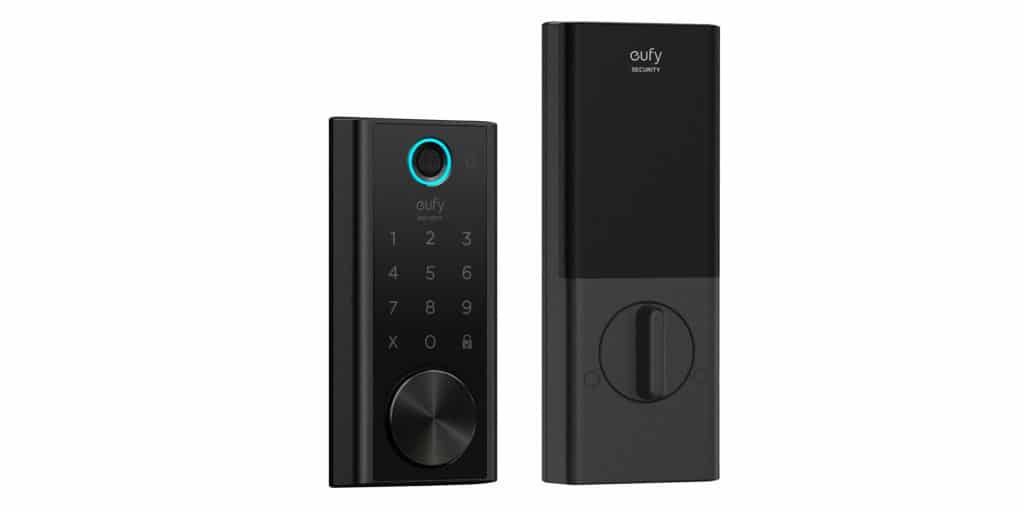
Anker has also announced Eufy Security Smart Lock. It comes equipped with a touchpad and a “bank-grade” security. The rated battery life on a full charge is one year while the IP65 ensures that it can withstand harsh weather. The Eufy Security Smart Lock will unlock in 0.3 seconds via fingerprint detection. Furthermore, the security smart lock supports Alexa and Google Assistant, however, it doesn’t support HomeKit.Also Read:YTD YouTube Video Downloader Alternative

Also Read:Turn The iPhone Into A WiFi Hotspot


HomeKit is Apple’s smart home platform that lets you control all your smart devices in a single place. Instead of using separate apps for every device you can simply control the supported devices via the HomeKit app. In other words, HomeKit is a framework that brings together many devices via scenes or customizable automation.

[via 9to5Toys]

Sunday, September 22, 2019

iPadOS 13: How to Open Links in New Window in Safari on iPad


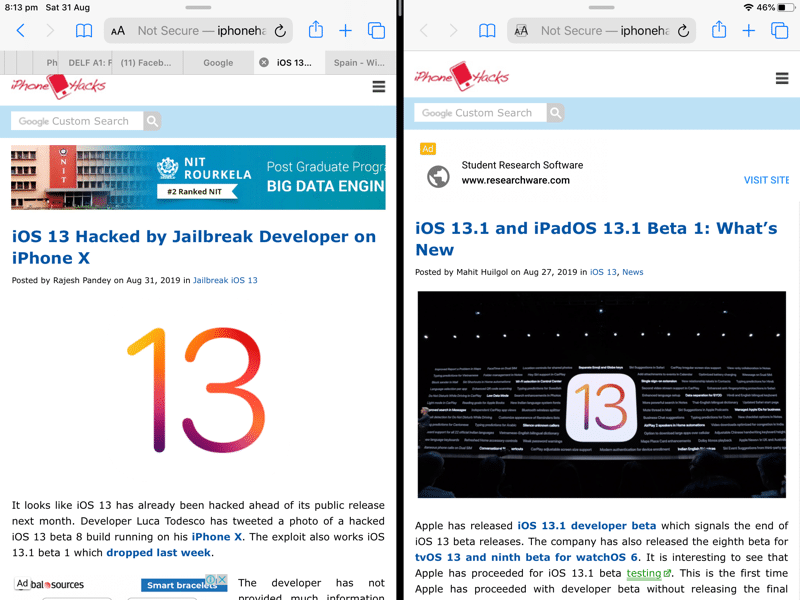
In iPadOS 13, you can now run multiple instances of the same app. This means you can have two windows of Safari browser open side-by-side. It’s finally easy to work with multiple browser windows on the iPad. Here’s how you can create a new window from a link in Safari on iPad.
Open Links in New Window in Safari on iPad

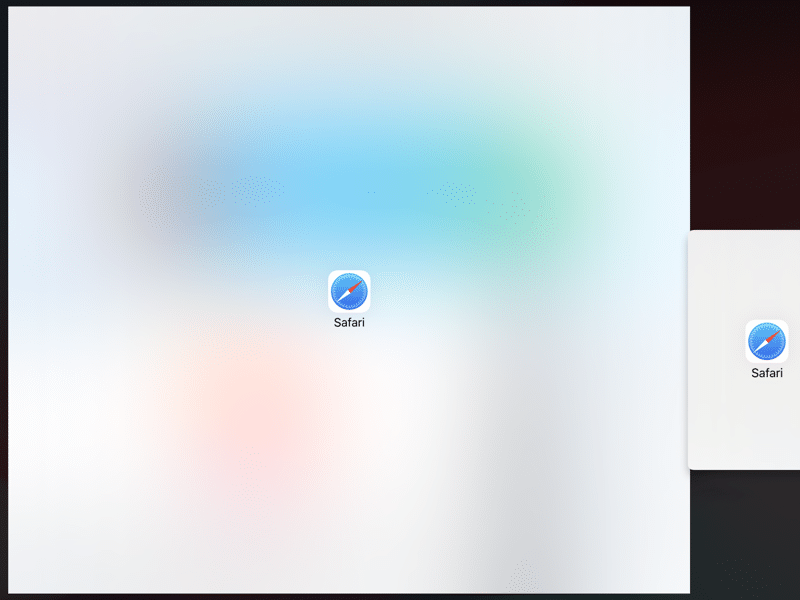
There are a couple of ways to use iPadOS 13’s new multiple-instances feature. You can manually drag the app icon to the edge of a screen to open a new window. Or you can drag a section of an app to open it in a new window. This works with a note in the Notes app, a mail in the Mail app and so on.

It’s this method that will help you create a new window in Safari using a link. Here’s how it works.

Step 1: Open a website in the Safari app and make sure you’re in the landscape mode.


Step 2: Find a link you want to use in the new window. Tap and hold on it and move your finger. You’ll see that a popup with the link will move with your finger.Also Read:kickass proxy

Also Read:ads Alternatives to the Backpage


Step 3: Now, take your finger to the right edge of the screen until you see a black bar and translucent box appear.


Step 4: Lift your finger here and a new Safari window with the link will open. You can also open a link in the full-screen window by taking the link to the top of the screen and dropping it there.


If you want to get rid of the new window that you’ve just opened, grab the handlebar in the middle of the two apps and swipe right.

And that’s how easy it is to open a link from Safari in a new window on iPad on iPadOS 13.
What Do You Think of iPadOS 13?

Have you checked out our iPadOS 13 features list? What are some of your favorite features? Are you a fan of the new Safari Download Manager? Share your thoughts with us in the comments below.

Friday, August 9, 2019

2019 iPad Pro Could Feature Triple-Camera System


Citing a supplier out of China, Apple will be introducing a triple-camera system to the iPad Pro lineup this year. This is the first time that we are hearing reports of the 2019 iPad Pro featuring a triple-camera system.

The iPad Pro currently only houses a single 12MP shooter at the rear. So, it would be an odd move from Apple to jump directly to a triple-camera system on the 2019 models. Plus, the inclusion of a telephoto sensor on the iPad won’t really make much of a sense since it would be of hardly any use.

It is possible that Apple could add a depth sensor and a ToF sensor to the iPad Pro to help improve AR-related features. After all, the company is rumored to add a ToF sensor to its 2020 iPhones.

The report also states that the upcoming 10.2-inch iPad could ship with a dual-camera setup. Again, this is the first time we are hearing this and while Macotakata has a good track record when it comes to Apple rumors, it is better to take this one with a pinch of salt.

There have not really been many leaks surrounding the 2019 iPad Pro. The lineup received a major design overhaul last year so this year improvements are likely only going to be internal in nature. We will probably see Apple unveil the 2019 iPad Pro alongside the 10.2-inch iPad in October.If you lost data after you updated to a new iPhone, you can always use Gihosoft iPhone Data Recovery to get the data back from the old iPhone or backup.You may also like: iphonerecovery.com


[Via Macotakara]

Wednesday, August 7, 2019

How to Transfer WhatsApp Messages from iPhone to Huawei for Free

Transfer WhatsApp Messages from iPhone to Huawei for Free

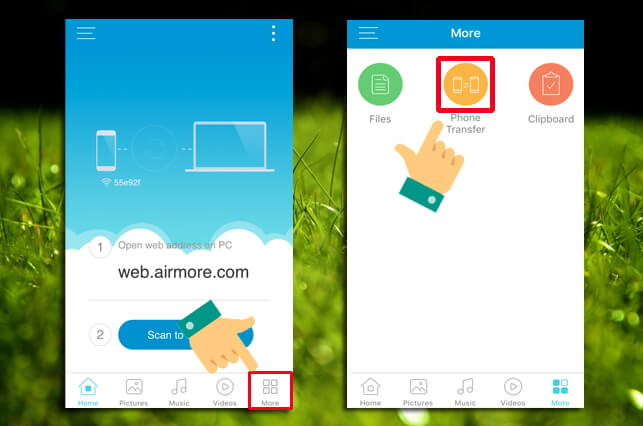
You can also easily transfer data from your iPhone to your Huawei device using AirMore. This is a free app that can help you switch devices by allowing you to easily transfer files from one device to another regardless of the operating system.  It also offers additional cloud storage, allowing you to save space on your device. To use it to transfer WhatsApp messages from your iPhone to Huawei P30/P30 Pro, follow these very simple steps:
Step 1: Install the AirMore app from the App store on your iPhone and also on the Huawei device from the Google Play Store. Make sure that both devices are connected to the same Wi-Fi network.
Step 2: Now launch the app on both devices and tap on the “More” tab.
Step 3: Tap on the “Phone Transfer” option on any device and the app will begin searching for devices connected to the same network.Read Next:tencent gaming buddy pubg update
airmore phone transfer
Step 4: On your iPhone, tap on the Huawei device’s name and then tap “Accept”.
Step 5: You are now connected and can transfer files from the iPhone to the Huawei. To transfer an item, select it and then tap on the “Send” button at the bottom.
Please note that you may need a stronger and more stable network to send multiple files using AirMore.
The transfer of data from iPhone to Android is not a simple process. Unless you have the right tool, the process can take a long time and you may not be able to transfer all data. Let us know which method you would use to transfer WhatsApp from iPhone to Huawei in the comments section below.If you lost data after you updated to a new iPhone, you can always use Gihosoft iPhone Data Recovery to get the data back from the old iPhone or backup.You may also like: iphonerecovery.com