Thursday, July 12, 2018

How to Recover Data from Dead Hard Drive 2018 Guide


Part 1. What’s the Causes of a Dead Hard Drive

Before we start to recover data from a dead hard drive, it’s better to know about the causes of a dead hard drive so we can know how we should take specific measures. Let’s see why a hard drive is dead.


The Hard Drive Having Corrupted Areas


When you try to access any data available in the corrupted areas, the computer will respond by freezing. Normally, if the hard drive is not completely dead, the issue can be resolved by restarting the computer. If the freezing problem persists, this could indicate that the hard drive will fail soon.


Irregular Computer Maintenance


Generally, a computer that is maintained regularly should not be slow. If you do not maintain your computer regularly, your hard disk will die. Usually, when a hard drive is dying, the computer boot sessions become longer and the processing speed goes down.


Mechanical Damage


To tell whether your hard drive has any mechanical damage, you need to listen to the noises it produces when running. If you happen to hear scraping, clicking, or grinding noises, mechanical damage could be the reason your hard disk is dying.


Be aware of the signs above and get to know how to recover data from dead hard drive, if you have lost data from it. However, there are things you should know about the dead hard drive.
Part 2. How to Recover Data from Dead Hard Drive - Basic Troubleshooting

When your hard drive is dying or is dead already, there are some basic troubleshooting you can apply to check what’s the real situation of it, especially when you need to recover data from a dead hard drive. These simple checks may increase the chance of getting back your data, but keep in mind that the following instructions does not guarantee that you’ll be able to recover your hard drive. While an option for professional help is your best choice, doing so will likely be expensive, so let’s take a look on the troubleshooting now.Sponsor Ads:

Gihosoft Free iPhone Data Recovery is a professional iPhone Data Recovery software to get back all your lost text message, photo, video, call history, note, contact and more from iPhone/iPad/iPod Touch.


Stop Using Your PC


If your hard-drive is still working but you are having performance issues, the best thing to do is stop using the computer until you have taken it to a professional repairer. If an external hard drive is having issues, unplug it from your PC.


Check Whether the Hard Drive is Really the Problem


This can be done by simply plugging the hard drive into another computer. If the hard drive works properly on a different computer, this shows the hard drive might not be dead. The problem might be the computer itself. In some rare cases, a hard drive failing to work on your own computer but working on other computers may be a sign indicating that your motherboard is failing. In such a case, you should take your computer to a repair professional for it to get checked out.


Know the Hard Drive Components


Hard drives have three main components. If any of these malfunctions, your hard drive will fail. The components are:


• PCB – This is the circuit board. It helps in translating information available on the hard drive into information you can read. It also controls the majority of hard drive functions.


• Platters – These are responsible for data storage.


• Head Assembly – This reads data from the platters.


Assess the Hard Drive Sounds


You can diagnose the hard drive problems by listening to the sounds it is producing. For example, if the header is damaged, the hard drive produces a clicking noise.


Avoid Do-It-Yourself (DIY) Fixes


Even if DIY fixes work, their solutions are temporary. In some cases, you may end up damaging your hard drive more. It is important to seek professional help for a permanent solution.

It’s important to know the causes and the basic troubleshooting when it comes to recover data from dead drive. The safer way is to get help from professionals, because some DIY methods may cause more harm on your drive or even your computer.

Sunday, July 8, 2018

Best Cydia Sources Repos for iOS 11.3.1 Electra Jailbreak 2019


Best Cydia Sources Repos for iOS 11.3.1 Electra Jailbreak 2019


Here are the list of Best Cydia Sources and Repository for iOS 11.3.1-11, 10, or 9 compatible with iPhone, iPad & iPad touch. We have recently posted the Compatible Cydia Tweaks for iOS 11.3.1 Electra and now we come up with the best sources or repos you can install in Cydia.


Cydia is an open, decentralized platform that helps you to install software packages hosted by the independent repositories, also called sources or repo.


Cydia includes many addons for Action Menu, Alkaline, Apps,Development, Bootlogo, BossPaper, Color Keyboard, Control Center, Cyget, FontSwap, Notification Center, Siri, Zepplin. Like wise you can customize your devices by installing tweaks, themes, wallpaper, Widgets, Ringtones and many more.


You are free to add un-trusted third party sources but you have to add at your own risk. So beside these Cydia’s default repos there are many more Cydia sources/repos compatible with iOS 11.3.1-11, iOS 10, iOS 9 and lower. I have listed the best 2018 Cydia sources/repos for jailbroken iPhone, iPad and iPod touch which includes millions of tweaks, themes, Addons, Utilities, development & much more.


You can check out in the list of Cydia sources section of the cydia. By default, Cydia includes BigBoss Cydia/Telesphoreo, ModMyi and ZodTTD & MacCiti which contains thousand of popular and useful packages but below listed are top cydia sources for iOS 11.3.1 or lower that are available for free.


Best Cydia Sources for iOS 11.3.1 Electra Jailbreak


Repo


URL


ALFHAILY


https://apt.alfhaily.me/


ANGELXWIND


https://cydia.angelxwind.net/


BIGBOSS


http://apt.thebigboss.org


BITEYOURAPPLE


http://repo.biteyourapple.net


COOLSTAR


http://coolstar.org/publicrepo/


CPDIGITALDARKROOM


https://repo.cpdigitaldarkroom.com/


CPDIGITALDARKROOM


https://beta.cpdigitaldarkroom.com/


GETDELTACO


http://getdelta.co/


GITHUB


https://midnightchip.github.io/repo/


HBANG


https://cydia.hbang.ws/


IBSOFT


https://ibsoft.net/cydia/


ICHITASO


http://cydia.ichitaso.com/


IHACKS


http://ihacksrepo.com


LIMNEOS


http://limneos.net/repo/


NULLPIXEL


http://repo.nullpixel.uk/


PACKIXCOM


https://repo.packix.com/


RPETRICH


http://rpetri.ch/repo/


RYAN PETRICH’S


http://rpetri.ch/repo


SINFULIPHONE


http://sinfuliphonerepo.com


SPARKSERVERSCOUK


http://beta.sparkservers.co.uk/


TATEU


http://tateu.net/repo/


UNLIMAPPS


http://beta.unlimapps.com/


XAROLD


http://repo.xarold.com/


XSELLIZE


http://cydia.xsellize.com


How to add Cydia sources / repository on your jailbroken iPhone, iPad & iPod Touch


Step 1. Open up Cydia.


Step 2. Go to Sources.


Step 3. On the upper right corner Tap Edit and then Add you favorite repo link


Step 4. After you added a Cydia/APT URL, Tap Add Source.Must Read:If you lost data after you updated to a new iPhone, you can always use Gihosoft iPhone Data Recovery to get the data back from the old iPhone or backup.
Gihosoft Free iPhone Data Recovery:iphonerecovery.com
If you use android phones, please choose Gihosoft Android Data Recovery


That’s it. You have successfully added a repo. Now you can install any tweak, themes and many more stuffs you like.


If your device is not yet jailbroken then follow step by step guide on;


Sponsor Ads:


Gihosoft Free iPhone Data Recovery is a professional iPhone Data Recovery software to get back all your lost text message, photo, video, call history, note, contact and more from iPhone/iPad/iPod Touch.


Gihosoft Android data recovery Free is a super awesome software specialized in Android file recovery. With this program, you are able to recover deleted photos, music, videos, messages, contacts, call logs, WhatsApp messages, Viber chat history and more from Samsung, Huawei, LG, HTC, Motorola, Google, Oneplus, Sony, Lenovo, ZTE and other Android devices directly. Meanwhile, this Android data recovery software is available for both Windows and Mac platforms.


Saturday, July 7, 2018

How to Download Apps Without Apple ID/Apple Password

Download apps without Apple ID via installing iOS Emu

First of all, you should visit the Emu site from your own device. IOS Emu is an app which has been designed to help you install different kinds of apps on your devices and it won’t even prompt you to enter the Apple ID. All you have to do is choose the icon at the top of the page and you can easily download the app without any hassles.
You will need to install the profile for using the app before you can open it. The profile is added automatically and all you have to do is activate it by following this trail. Head to ‘Settings’ and then to ‘General’. Now, move to profile and device management. Tap on the profile and enable it. If you see a pop up about not being signed, you need to accept it and then move on.

Install Apps on iPhone without Apple ID via Tu Tu helper

Tu tu helper is one of the best alternate versions which helps you search for the app and you can download it easily without the need to enter your Apple ID. In the iOS Emu app, right at the bottom beside the letter ‘T’. All you have to do is tap on the ‘install’ option. Now, scroll down to find the Tu Tu helper option. When you click there, it will open the browser and you then need to click on the box that reads ‘Get’ and then it will be installed on the home screen.
Now, finally approve the certificate and you are all set to get started.

How to Download Apps Without apple ID Password

  • Launch the ‘Settings’/ app on your phone and then move down and tap on touch ID and passcode.
  • If you have a passcode, you need to enter it.
  • You then need to see the option of ‘iTunes and App store’ and toggle the option for using Touch Id for this.
  • Now, head back to ‘Settings’ again and move down and tap on ‘iTunes and App store’ again.
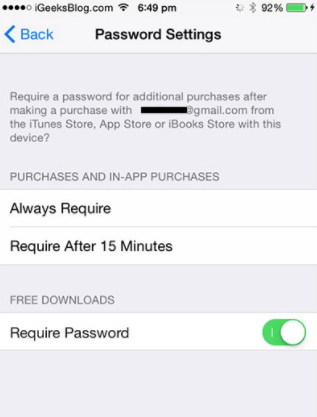
  • You will find the option of password settings under your Apple Id and you need to tap on it.
  • Now, in the next screen, you will find the option called required password. Toggle it off and you can now download free items without the need to enter passwords.
    Related Articles:Free video cutter
download apps without apple id password

Download Apps Without Apple ID Password When Touch ID on

First of all, we will show how to turn off the touch ID
  • Head to Settings and then go the tap on that says Touch ID and Pass code.
  • Now, enter the passcode and turn off iTunes and App store.
  • When prompted, enter the Apple ID password and then click Ok.
Now, if you are looking to download some free apps on your phone, here is how to do it.

How to Delete Movies from iTunes Library on Computer


How to Delete Movies from iTunes on Mac/Windows?


Deleting movies from iTunes is similar to deleting any other content. You will need to navigate to the respective section on iTunes, use the right-click context menu, and then simply delete the item you no longer wish to keep. Follow these instructions:


Open iTunes on your Windows PC or Mac.


Once iTunes is launched, find and click on Movies from the drop-down menu. Your movie library will open. This section is available at the top-left corner of iTunes.


Now find the movie that you wish to delete. There are many filters you can use to find the item quickly, these include Downloaded, Home Movies, Recently Added, etc.


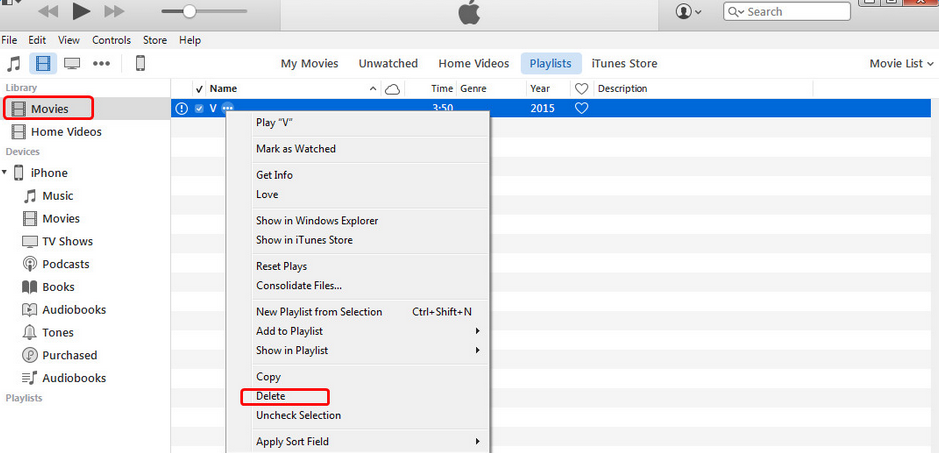
Once you have found the movie that you wish to delete, right-click on it and then select ‘Delete’ option from the context menu. A confirmation message may appear, confirm your action to proceed.


Depending on the type of movie, there are different options you will need to use in order to delete it. If it is a ‘Home Movie’ that you didn’t purchase from iTunes Store and simply added to your iTunes library from your computer, then you will need to select ‘Delete’ option.


If you have downloaded the movie, then you will need to select ‘Remove download’ option to delete the movie.
How to Delete Purchased Movies from iTunes Account?


You have purchased a movie via iTunes Store and then transferred it to your iDevice to watch it. After deleting the movie from your iDevice, you will still find that movie in your iTunes library. It can be a bit annoying because you already watched the movie and no longer want to see it in your iTunes library. While you cannot actually delete the purchased movie from your iTunes account, you can hide it so that it does not appear in the Movies section of iTunes.


Follow these instructions:


First, make sure that the movie is deleted locally. To do this, open iTunes, navigate to Movies section and then delete it via right-click or Delete key on your keyboard.


Now that you have deleted the movie locally, you may be surprised to see it still listed in iTunes. This is because the movie is still available on your iTunes account. You will notice a little cloud icon next to that movie.


Sponsor Ads:
Gihosoft Free iPhone Data Recovery is a professional iPhone Data Recovery software to get back all your lost text message, photo, video, call history, note, contact and more from iPhone/iPad/iPod Touch.
Gihosoft Android data recovery Free is a super awesome software specialized in Android file recovery. With this program, you are able to recover deleted photos, music, videos, messages, contacts, call logs, WhatsApp messages, Viber chat history and more from Samsung, Huawei, LG, HTC, Motorola, Google, Oneplus, Sony, Lenovo, ZTE and other Android devices directly. Meanwhile, this Android data recovery software is available for both Windows and Mac platforms.If you use android phones, please choose Gihosoft Android Data Recovery.With Gihosoft Android Data Recovery, no longer afraid of data loss!


Now as mentioned above, you cannot actually delete the downloaded movie, but you can hide it. To do this, simply select the movie again and press Delete button on your keyboard. This time, iTunes will prompt you to hide the content. Click ‘Hide Movies’ option when prompted and it will disappear from your iTunes library.

How to Restore iPhone Apps/Software without iTunes 2019

How to Restore iPhone Apps/Software without iTunes 2019

Method 1: How to Restore iPhone Software without iTunes

In the following paragraphs, we shall be throwing light on the methods by which you can restore your iPhone software without iTunes.

#1. Restore iPhone Apps/Software from App Store

You can re-download your purchased apps from App Store, but this app restore feature is only for purchased apps. Before you can restore your Phone apps/software from App Store, firstly, you’ll have to sign in with your App IP with which you used to purchase such files. Secondary, you’ll need to have the latest version of iOS on your iPhone.
Here are the steps to re-download/restore your purchased iPhone software from App Store:
  1. Open the App Store app, and click “Today” at the bottom of the screen.
  2. Tap the image icon or your photo at the upper-right corner of your screen, then click “Purchased”.
  3. Click “Not on this iPhone”.
  4. From the list of apps, find the one you want to restore and click on the download icon. The app will download on your iPhone.
restore iphone from icloud backup

#2. Restore iPhone Apps from iCloud

It’s easier to restore your iPhone apps/software via iCloud than via App Store. If your iPhone apps are well backed up on iCloud, then you can restore your iPhone apps or even set up your iPhone from iCloud. But before you try to restore your iPhone apps from iCloud make sure your iPhone is connected to a Wi-Fi network, and a power source.
Here is how to restore iPhone apps/software with iCloud:
  1. On your iPhone, launch your Settings app, then click “General > Software Update”.
  2. After updating your iOS, click “Settings > [your name] > iCloud > Storage > Manage Storage. Choose your device and click on it to see the date and size of its latest backup.
  3. Go to “Settings > General > Reset > Erase all Content and settings”.
  4. restore iphone from icloud backup
  5. On the App & Data screen, click “Restore from iCloud Backup”.
  6. Sign in to iCloud. Then click “Choose Backup” and choose from your list of available latest backups.
Your device settings and apps will be restored from iCloud. All your purchased items including purchased apps will be automatically downloaded.
Sponsor Ads:
Gihosoft Free iPhone Data Recovery is a professional iPhone Data Recovery software to get back all your lost text message, photo, video, call history, note, contact and more from iPhone/iPad/iPod Touch.
Gihosoft Android data recovery Free is a super awesome software specialized in Android file recovery. With this program, you are able to recover deleted photos, music, videos, messages, contacts, call logs, WhatsApp messages, Viber chat history and more from Samsung, Huawei, LG, HTC, Motorola, Google, Oneplus, Sony, Lenovo, ZTE and other Android devices directly. Meanwhile, this Android data recovery software is available for both Windows and Mac platforms.

Saturday, June 23, 2018

How to Use Find My iPhone & Locate The Lost iPhone

How to Set up Find My iPhone on Your iPhone/iPad

Before you learn how to use Find My iPhone software, you should get it properly set up on your iPhone or iPad device.

How to Set up Find My iPhone on Your iPhone/iPad

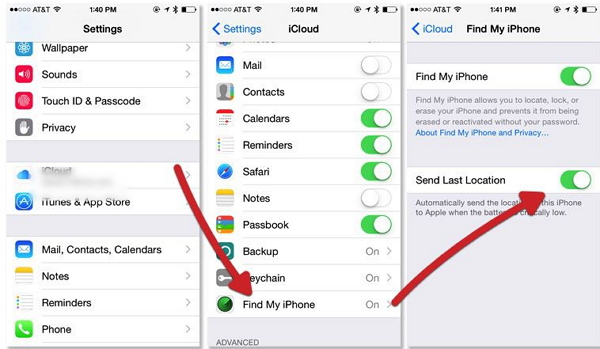
  1. Go to the settings menu of your device and tap your iCloud account listed under your name. However, if you are using an older version (iOS 10.2 or earlier), you can go to Settings and select iCloud straightaway.
  2. You will be able to see the Find My iPhone app under the iCloud, then just tap it.
  3. Then, sign in with your Apple ID and password.
  4. Now, you will need to switch on the options called “Find My iPhone” and “Send Last Location”.
set-up-find-my-iphone
Tip: The other Apple devices such as Apple Watch and AirPod that are paired to your iPhone or iPad, will be configured automatically at the completion of the above setup.

How to Use Find My iPhone to Locate The Lost iPhone

With An iOS Device

1. Get hold onto another iOS device.
2. Tap on the Find My iPhone app located in the Apps.
3. Enter your device’s Apple ID and password.
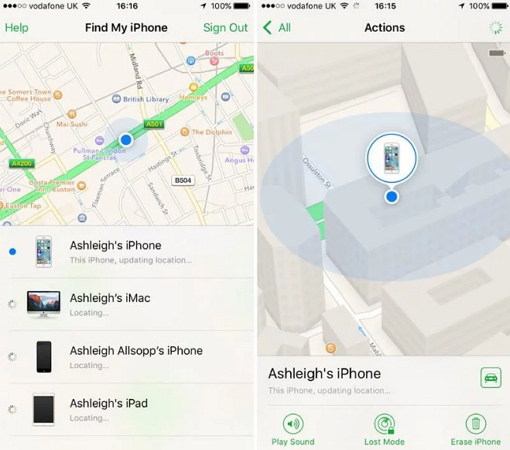
4. On the screen, you will be able to notice a compass. In addition to that, you can see the term “Locating”. It means that the tracking process is started. A couple of notifications will appear; these notifications will let you allow Find My iPhone app to turn on the option called “Send Last Location”.
5. You will be directed to a map by now. This map will show the locations of all the devices you own.
6. Identify your lost device and zoom in.
7. After locating your iPhone, you have a couple of options to consider.
  • Play a sound if you are really close to the device.
  • Switch it into “Lost Mode” and make it send its location.
  • If you cannot accomplish any of the above, go to Erase iPhone (so your data will not be misused by a third party).
8. After selecting the appropriate option, sign out from Find my iPhone.
locate-lost-iphone-on-ios-device

With iCloud.com

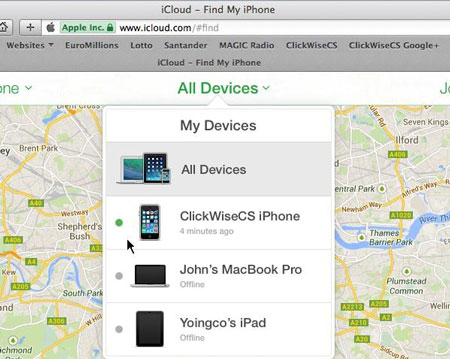
  1. Use a web browser and type in www.iCloud.com.
  2. Enter the credentials to log into your iCloud account.
  3. Go to Find iPhone (which is located in the main menu).
  4. You will be required to enter Apple ID and password to sign in.
  5. Select “All Devices” and go to the device you need to locate.
  6. Now, you can zoom in the map and locate your device closely. Now can simply choose an option from the upper right corner.
  7. Play a sound (if the device is left on silent mode and it is somewhere in the house, this can be useful).
  8. Lost mode (you can enter a contact number which will be displayed on the screen of the lost device together with a notification sound).
  9. Erase mode (if you are unable to get your device back, erase all the data).
icloud-find-my-iphone

What If Find My iPhone Isn’t Working

Common reasons that Find My iPhone may not work

After a successful configuration of Find My iPhone app, your iOS device may not show up due to three reasons.
  • The device’s battery is dead or it is switched off
  • The device doesn’t have access to internet
  • The device’s Location Service is turned off

Available Options When Find My iPhone Doesn’t Work

  1. Enable “Notify Me When Found” option to let the Find My iPhone app notify you as soon as it is connected to internet.
  2. Select any of three options (Play Sound, Lost Mode or Erase); the selected option will get activated as soon as the device is connected to internet.
  3. Select “Remove from Account” (if you have purposely got rid of the device and you don’t need to track it any more).

Quick Quiz about Find My iPhone & Your iPhone Data

Can I find my iPhone /iPad if the SIM card is removed?

As long as your device is turned on and connected to internet, you can do it. When connected to internet, Find My iPhone app can locate your device’s current location.

Can I locate my iPhone /iPad if I had Location Services turned off, or Airplane Mode turned on?

You cannot. There is no way for your device to send its location with such configuration.

Can I locate my iPhone /iPad if it’s been erased or restored?

There is no way to track your iPhone if it is restored or erased.

Can I start using iCloud after my iPhone is stolen to wipe the phone?

No. You must have iCloud configured with Find My iPhone app before losing the device.

How to find a lost iPhone that is turned off or offline?

As long as your iPhone is turned off, you cannot track it. However, you can keep the “Notify Me When Found” option activated in order to get a notification as soon as your device goes online.
Gihosoft iPhone Data Recovery is a professional iPhone Data Recovery software to get back all your lost text message, photo, video, call history, note, contact and more from iPhone/iPad/iPod Touch. It offers a full solution to recover your lost data in different tough situations. Besides recovering data directly from iPhone, iPad and iPod touch, it also allows you to recover data from iCloud and iTunes backup files.

Music Not Restored to New iPhone? Here Are The Solutions


Restore Music to New iPhone via iTunes


You can restore any type of media on your new iPhone or any new iDevice using iTunes. This method depends on that you already have a iTunes backup on your mac or PC. Blow is the guide to restore your iTunes library to new iPhone.


Step 1: Open iTunes from the platfrom you used to back up your device whether it Mac or PC.


Step 2: Now connect your iPhone to the computer using the USB cable. If a message pops up in front of you asking for the passcode, you have to follow the steps.


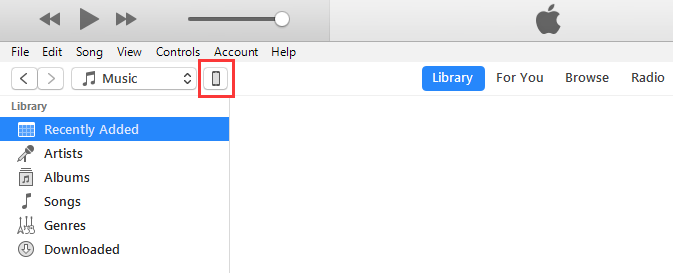
Step 3: Select your iPhone when it appears in the iTunes. On the left sidebar, choose "Music".

Related Articles:Gihosoft Free iPhone Data Recovery


Step 4: Check “Sync Music” and check the purchased music you want to transfer to iPhone. Tap Apply to sync the purchased songs to iPhone.


Gihosoft iPhone Data Recovery is a professional iPhone Data Recovery software to get back all your lost text message, photo, video, call history, note, contact and more from iPhone/iPad/iPod Touch. It offers a full solution to recover your lost data in different tough situations. Besides recovering data directly from iPhone, iPad and iPod touch, it also allows you to recover data from iCloud and iTunes backup files.